How to Make a YouTube Thumbnail Without Your Face or Photoshop
How to make a YouTube thumbnail in 2026: the official size, the 120-pixel test, 5 faceless thumbnail types and a checklist to run before you upload.
By AnimatedBoard · 14 min readRead in Spanish
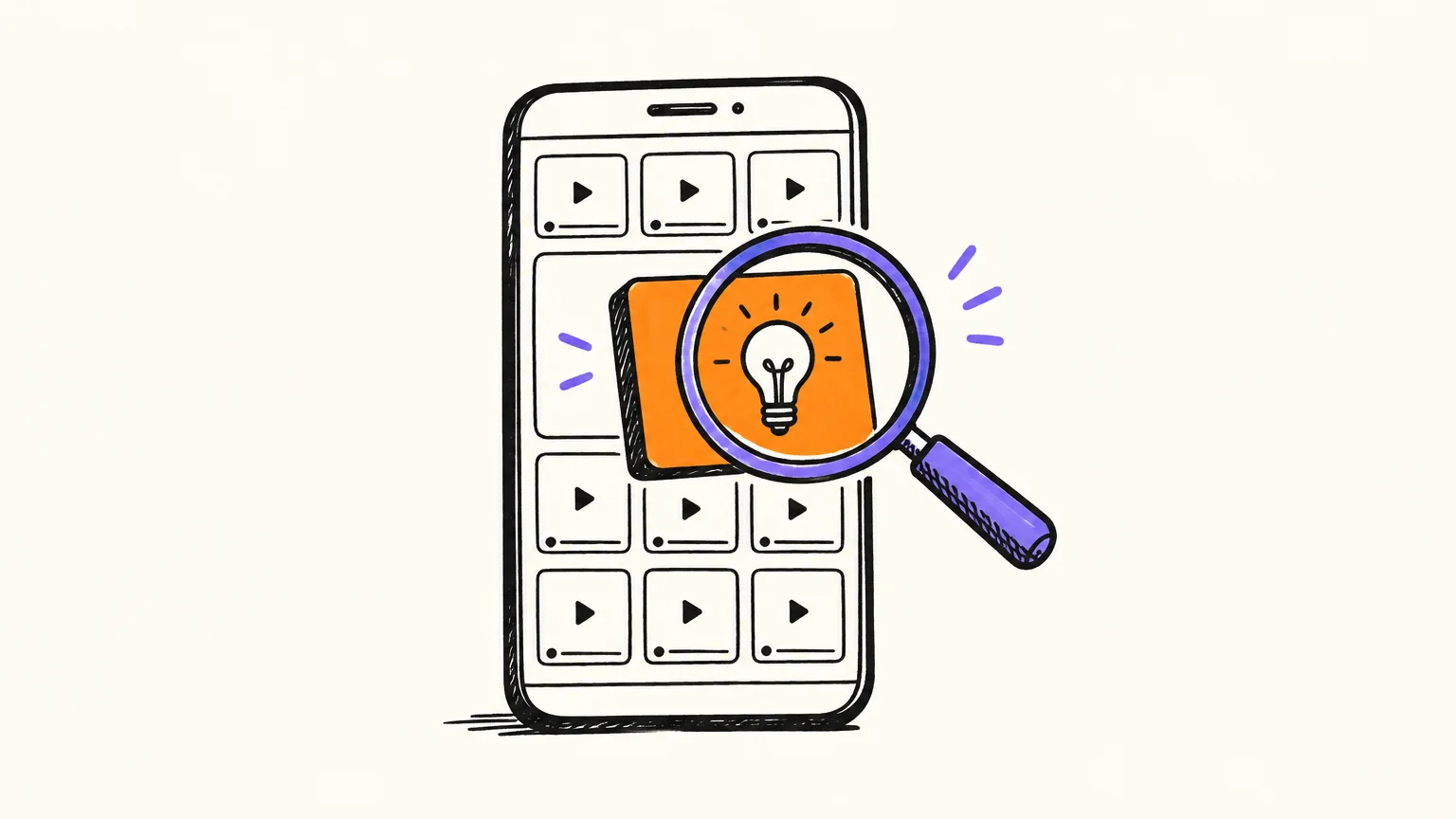
To make a YouTube thumbnail, design one 16:9 image (JPG or PNG, at least 640 pixels wide) with a single clear subject, three or four words at most and strong contrast, then upload it in YouTube Studio under Thumbnail. Custom thumbnails need a verified account. You don't need your face or Photoshop: a big drawn object, a before-and-after, a simple diagram, a question or a number can carry a faceless thumbnail, as long as it still reads when it shrinks to the size of a stamp on a phone.
Key takeaways
- Official size (YouTube Help, checked 7 October 2026): YouTube recommends 3840×2160 pixels for video thumbnails and 2160×3840 for Shorts, with a minimum of 640 pixels wide (videos) or high (Shorts), in JPG or PNG. The 1280×720 many guides still quote meets the minimum but is no longer YouTube's figure.
- File size depends on where you upload: up to 2 MB from a phone and 50 MB from a computer for video thumbnails.
- You need a verified account to upload your own thumbnail, and custom Shorts thumbnails can only be added in YouTube Studio on a computer.
- YouTube's own A/B test picks the winner by watch time, not clicks, for up to 3 thumbnails or titles. A thumbnail that over-promises loses even if it gets clicked.
- Word budget: one subject, 2-4 words, and keep the bottom-right corner clear, because YouTube prints the video's length there.
- Run the 120-pixel test (below) before every upload: if you can't tell the topic at 120 pixels wide in two seconds, simplify.
What size should a YouTube thumbnail be?
A YouTube thumbnail should be a 16:9 image; YouTube recommends 3840×2160 pixels with a minimum width of 640 pixels, in JPG or PNG. That comes from the official YouTube Help page on custom thumbnails, checked on 7 October 2026:
| Spec | Long-form videos | Shorts | Podcast playlists |
|---|---|---|---|
| Recommended resolution | 3840×2160 px | 2160×3840 px | — |
| Minimum | 640 px wide | 640 px high | — |
| Aspect ratio | 16:9 | 9:16 | 1:1 |
| Formats | JPG or PNG | JPG or PNG | JPG or PNG |
| Max file size, from a phone | 2 MB | — | 10 MB |
| Max file size, from a computer | 50 MB | 50 MB | 50 MB |
| Where you can add it | YouTube Studio, computer or phone | YouTube Studio on a computer only | — |
Three details on that page are easy to miss:
- A vertical video with a 16:9 custom thumbnail is shown with an auto-generated 4:5 thumbnail on the home, explore and subscriptions pages. If your video is vertical, make a 9:16 thumbnail.
- There's a daily limit on how many custom thumbnails a channel can upload; if you hit it, YouTube asks you to try again in 24 hours.
- Thumbnails follow the Community Guidelines. Nudity, hate speech, violence or harmful content can get the thumbnail rejected and a strike, and repeat offences can remove custom thumbnails for 30 days.
Our advice: design at 16:9, never below 1280×720, and export larger if your tool allows it.
How to make a YouTube thumbnail in 7 steps, without Photoshop
You can make a good thumbnail with any tool that exports a 16:9 JPG or PNG: a slides app, a free browser-based editor or a thumbnail tool like ours. The tool matters far less than these seven decisions, made in this order:
- Write the promise in one sentence. What question does the video answer? "Why the sky is blue and not white." If you can't write it, the thumbnail will be vague too; our free YouTube video ideas generator can help sharpen the angle.
- Choose the one picture that shows the topic. Not a detail or a side story: the image anyone recognises at a glance, so someone who sees only the picture can guess the topic.
- Write 2-4 words that add to the title. The title already says the topic in full. The thumbnail adds the hook: the question, the stakes, the surprise. More on this in our guide to YouTube titles, descriptions and chapters.
- Compose in halves. Subject on one side, words on the other, big. Leave a margin on every edge and keep the bottom-right corner empty for the duration label.
- Push the contrast. Light subject on a dark background or the reverse, a thick outline around the words, and one accent colour for the single word that matters.
- Shrink it and look. Run the 120-pixel test below. Most fixes happen here.
- Export and upload. JPG or PNG, 16:9, under 2 MB if you're on your phone. In YouTube Studio: Content → your video → Thumbnail → Upload file → Save.
Tip: decide the thumbnail picture while you write the script, not after. Our guide on how to make a YouTube video covers the rest of the publishing checklist.
The 120-pixel test: does your thumbnail still read on a phone?
The 120-pixel test is the check we run on every thumbnail: shrink it to 120 pixels wide, look at it for two seconds, and answer three questions. If any answer is wrong, the thumbnail is too busy.
- What is this video about? You should be able to say the topic, not just "something about science".
- Which word did I read first? It should be the word you meant to stand out.
- What is the one thing I saw? One object, not "a few things".
Why 120 pixels? It's a deliberately harsh stand-in for the smallest places a thumbnail appears, such as the suggested videos beside the one you're watching; it's our rule of thumb, not a YouTube number. Without any software, zoom your browser out until the image is about the width of your thumb, or resize it in a slide to about 3 cm wide.
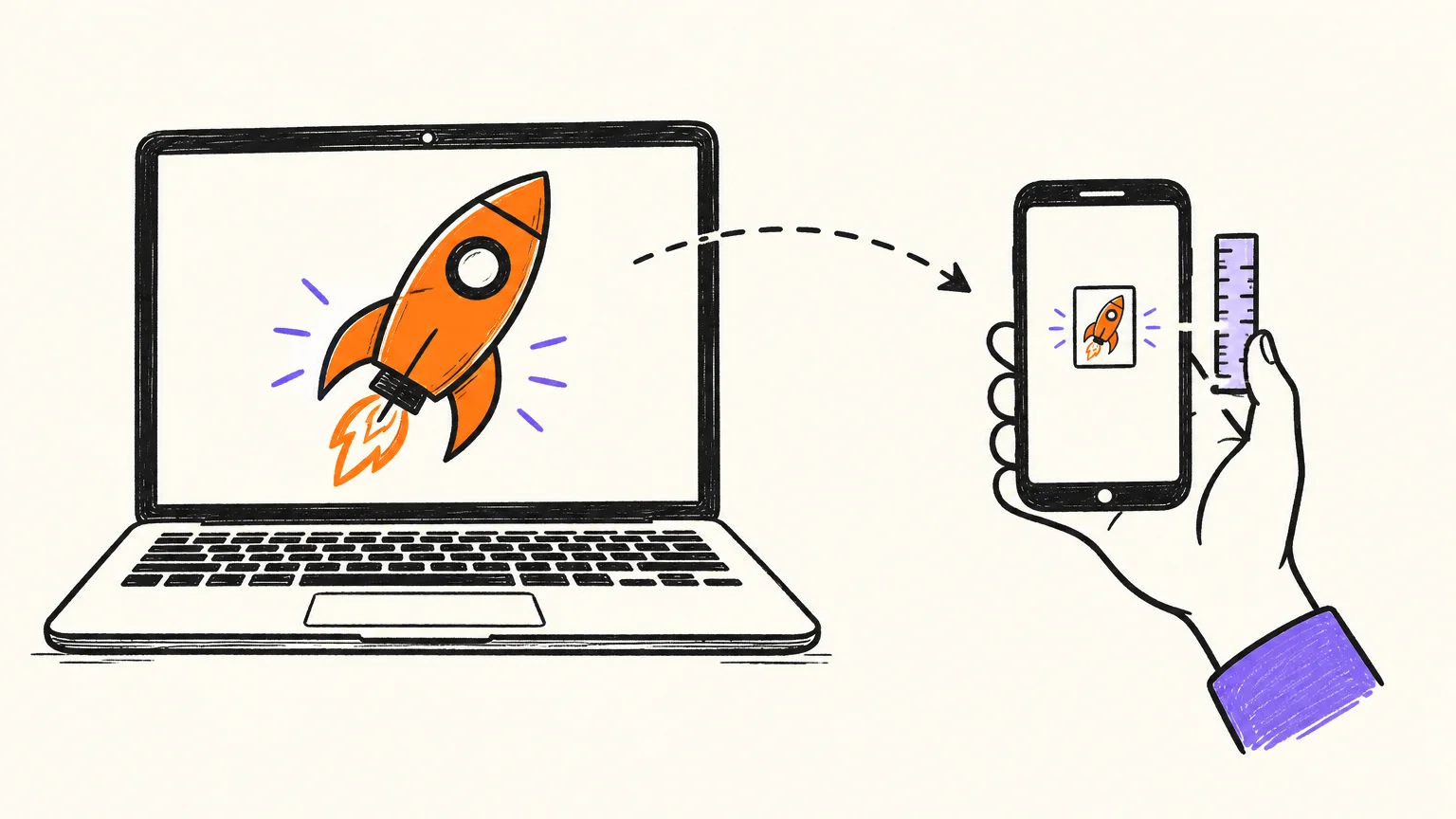
This is what usually survives the shrink, and what doesn't:
| Element | At full size | At 120 px wide | What to do |
|---|---|---|---|
| One big subject filling a third of the frame | Clear | Clear | Keep |
| Three or more small objects | Rich | A blur | Keep one, cut the rest |
| 2-4 heavy words with an outline | Bold | Readable | Keep |
| A full sentence | Fine | Grey noise | Cut to 2-4 words |
| Thin or script font | Elegant | Disappears | Use a heavy sans-serif |
| Detailed background | Atmosphere | Competes with the subject | Blur, darken or flatten it |
| Low contrast (beige on white) | Soft | Invisible | Dark on light or light on dark |
YouTube thumbnail best practices that matter more than the tool
The best practices that matter are about attention, not software: one subject, few words, strong contrast, a clear corner and an honest promise.
One subject, placed off-centre
The eye needs one place to land. Put the subject on the side opposite the words and let it fill a third of the frame or more. A whole scene from your video is usually too much.
Two to four words that don't repeat the title
The title and the thumbnail are read together: two halves of one message. If the title is "Why Is the Sky Blue? The Physics of Light, Explained", the thumbnail doesn't need the question again. "BLUE, NOT WHITE?" adds the curiosity the title leaves out.
Contrast, one accent colour and a clear corner
Bold outlines, a plain background and one accent colour for the key word separate your thumbnail from the grid. And keep the bottom-right corner empty: YouTube prints the video's length there (look at any video in your feed), so anything you put in that corner gets covered.
Curiosity with an honest promise
Make people curious about something the video actually delivers. YouTube's spam policy names "malicious clickbait": misleading titles, thumbnails or imagery that trick people into clicking a video that doesn't deliver what was promised. And when YouTube tests thumbnails itself, it picks the winner by watch time, not clicks (see below). An honest hook is the one YouTube's own test rewards.
The same layout every time
Viewers recognise a channel before they read it. Keep the font, the side for the words and the accent colour the same across videos, and change only the subject.
5 faceless YouTube thumbnail ideas that work without a face
A faceless thumbnail works when one object, contrast or symbol does the job a face would do: give the eye a place to land and an emotion to read. These five layouts suit channels that never show a person on camera:
| Type | What's in it | Best for | Example (hypothetical) |
|---|---|---|---|
| 1. The big object | One object filling the frame, plus 2-3 words | Explainers, history, science | A cracked piggy bank: "SAVING IS BROKEN?" |
| 2. Before / after | The frame split in two states | How-tos, habits, comparisons | Messy desk vs tidy desk: "2 MINUTES" |
| 3. The drawn diagram | The whole process in one simple drawing | Education, business models | Sun, cloud and wave in a loop: "THE WATER CYCLE" |
| 4. The question | A strange or contradictory image and a short question | Curiosity topics, myths | A blue sky next to a red one: "WHY BLUE?" |
| 5. The number | A count or amount drawn as objects, plus the number | Lists, money, records | Three coins growing: "RULE OF 72" |
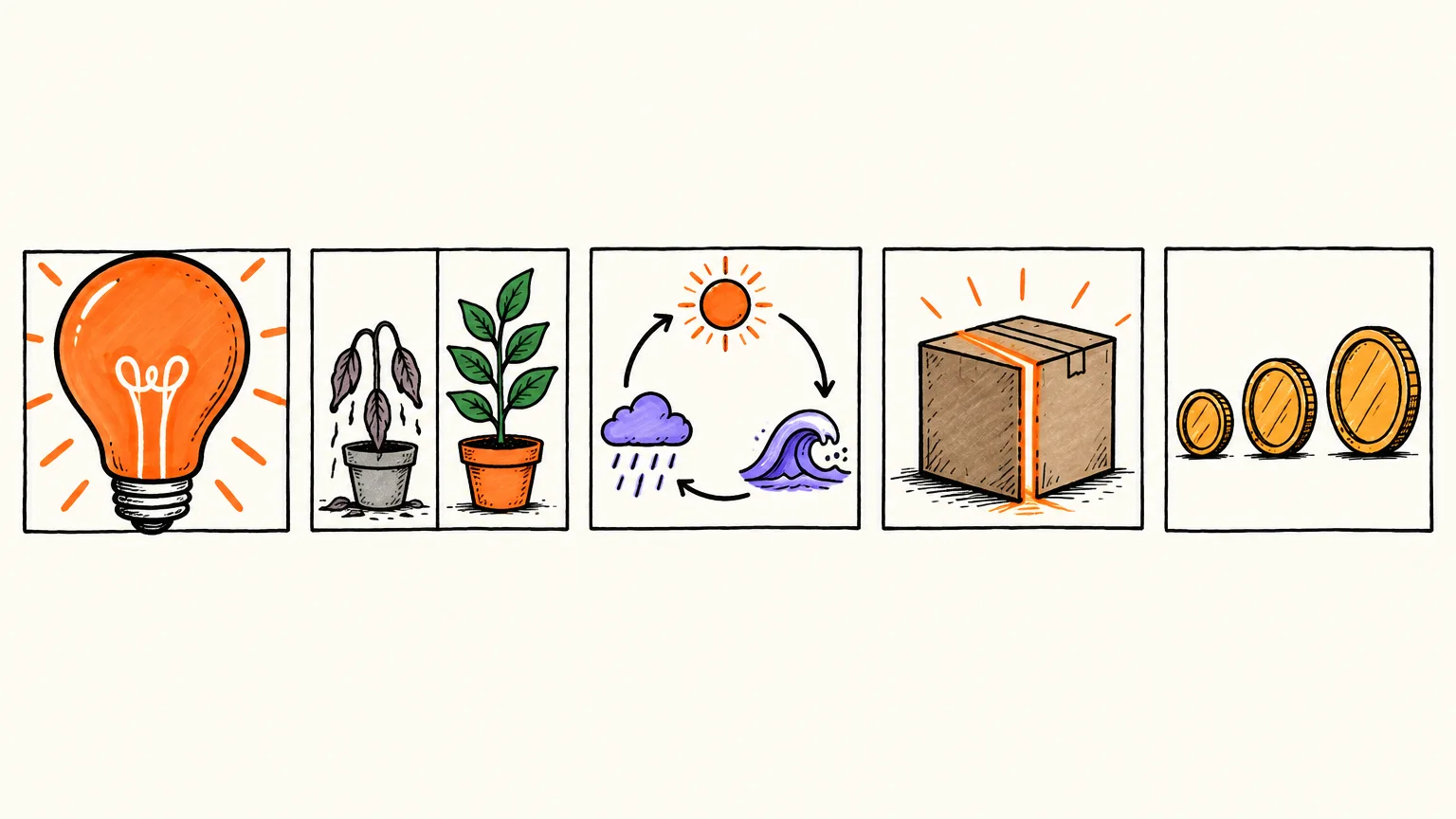
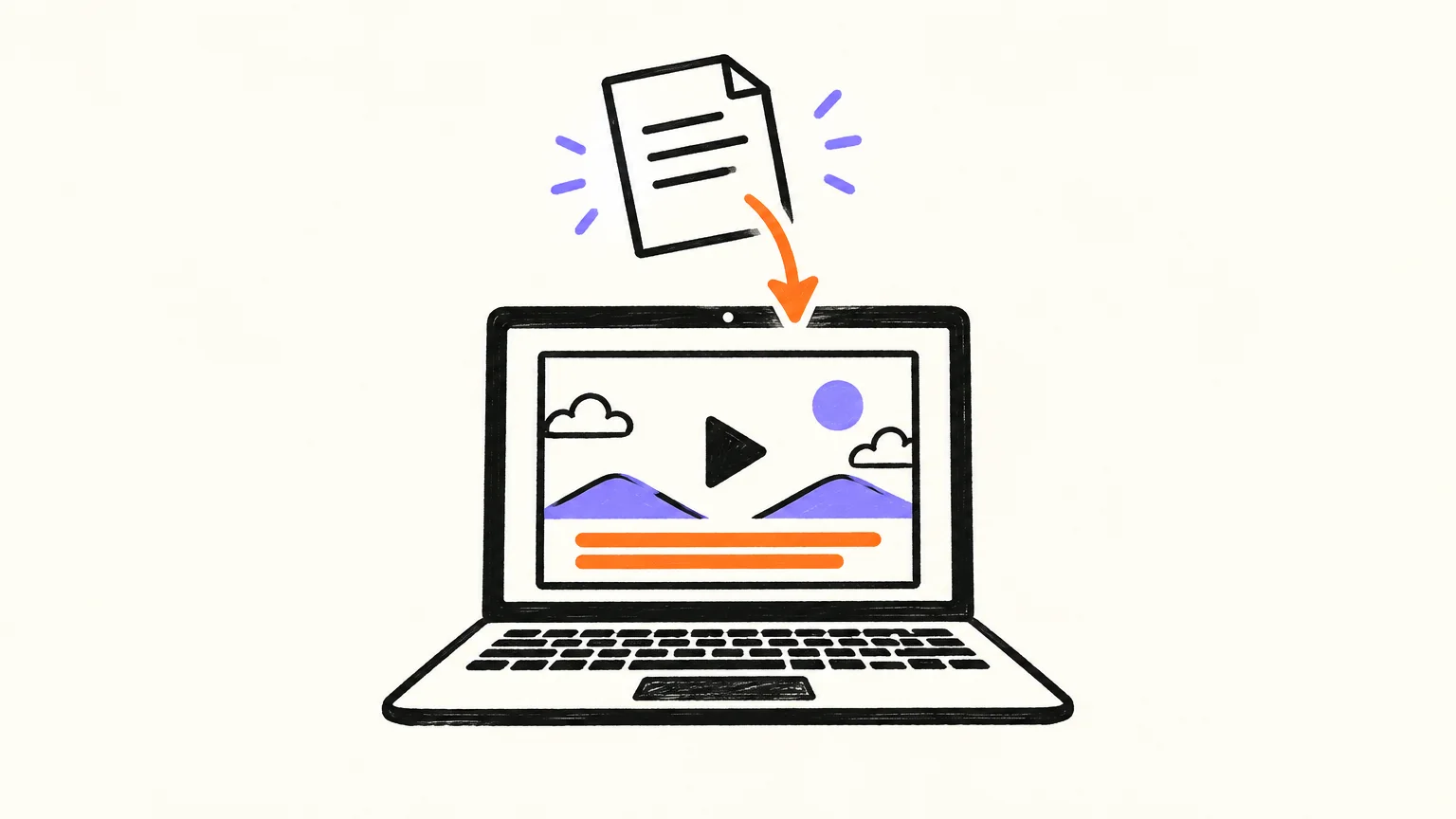
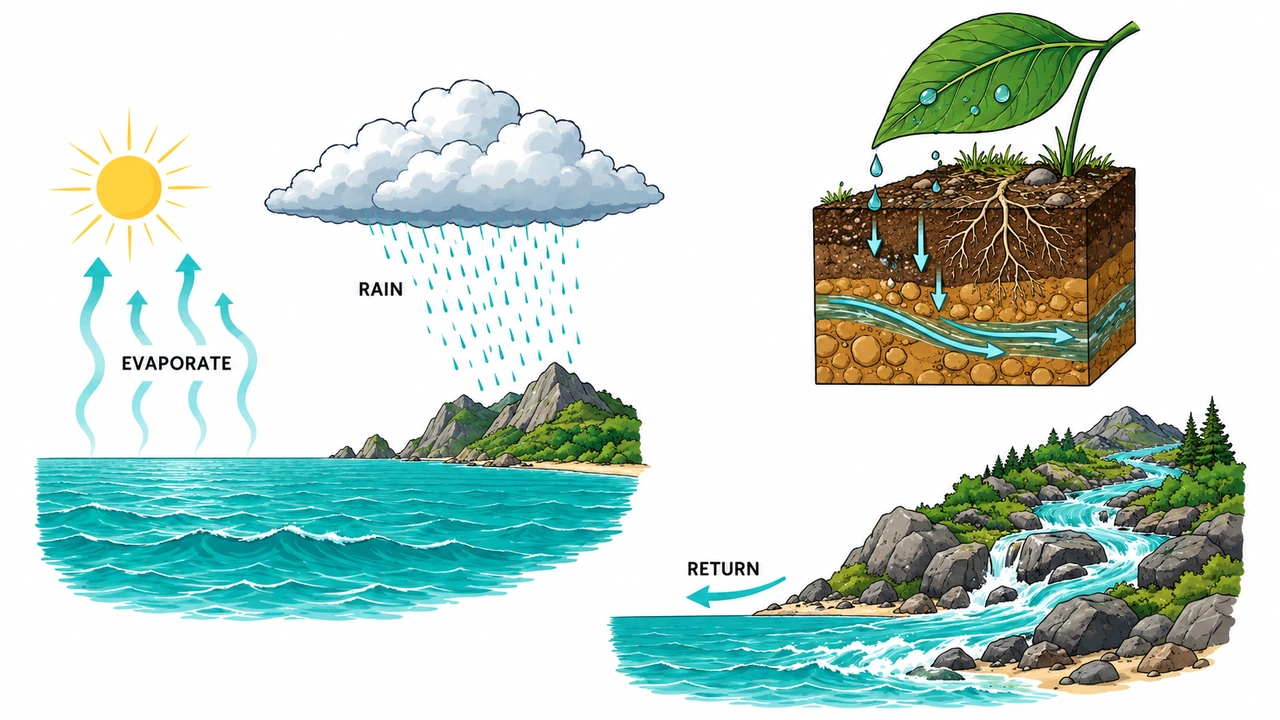
The big object is the easiest to get right: draw the thing the video is about, huge. Before / after needs a difference you can see at 120 pixels; "slightly better" doesn't read. The drawn diagram is where faceless channels have an edge, as long as it's simplified. A full infographic like the one below is right for a scene in an animated infographic video and far too busy for a thumbnail; the thumbnail takes only the loop of arrows and two or three of its pictures.
The question works when the picture itself looks odd and the words only point at it. The number works when the number is the content (a rule, a price, a record), not when it just counts list items.
An illustrated character with a strong expression can also replace your face:
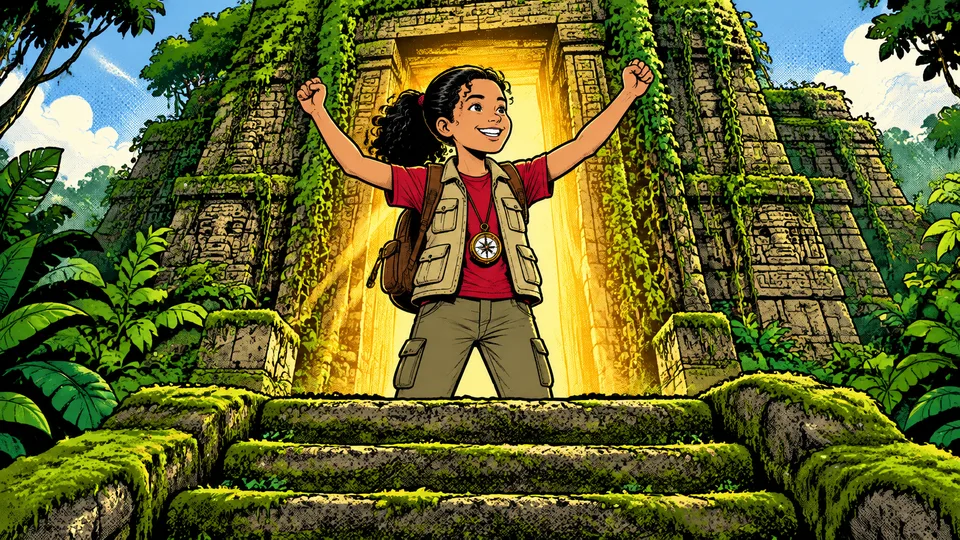
If you're still choosing what your channel is about, our list of faceless YouTube channel ideas starts from topics that suit these five types, and the 19 drawing styles let the cover match the look people see after the click.
Worked example: a thumbnail for a 40-second Short
Here is a real Short made with AnimatedBoard: a 40-second vertical doodle video explaining why the sky is blue. Its script opens with "Why is the sky blue and not white?" and ends with a question for the comments. Watch it first, then look at how we'd plan its cover.
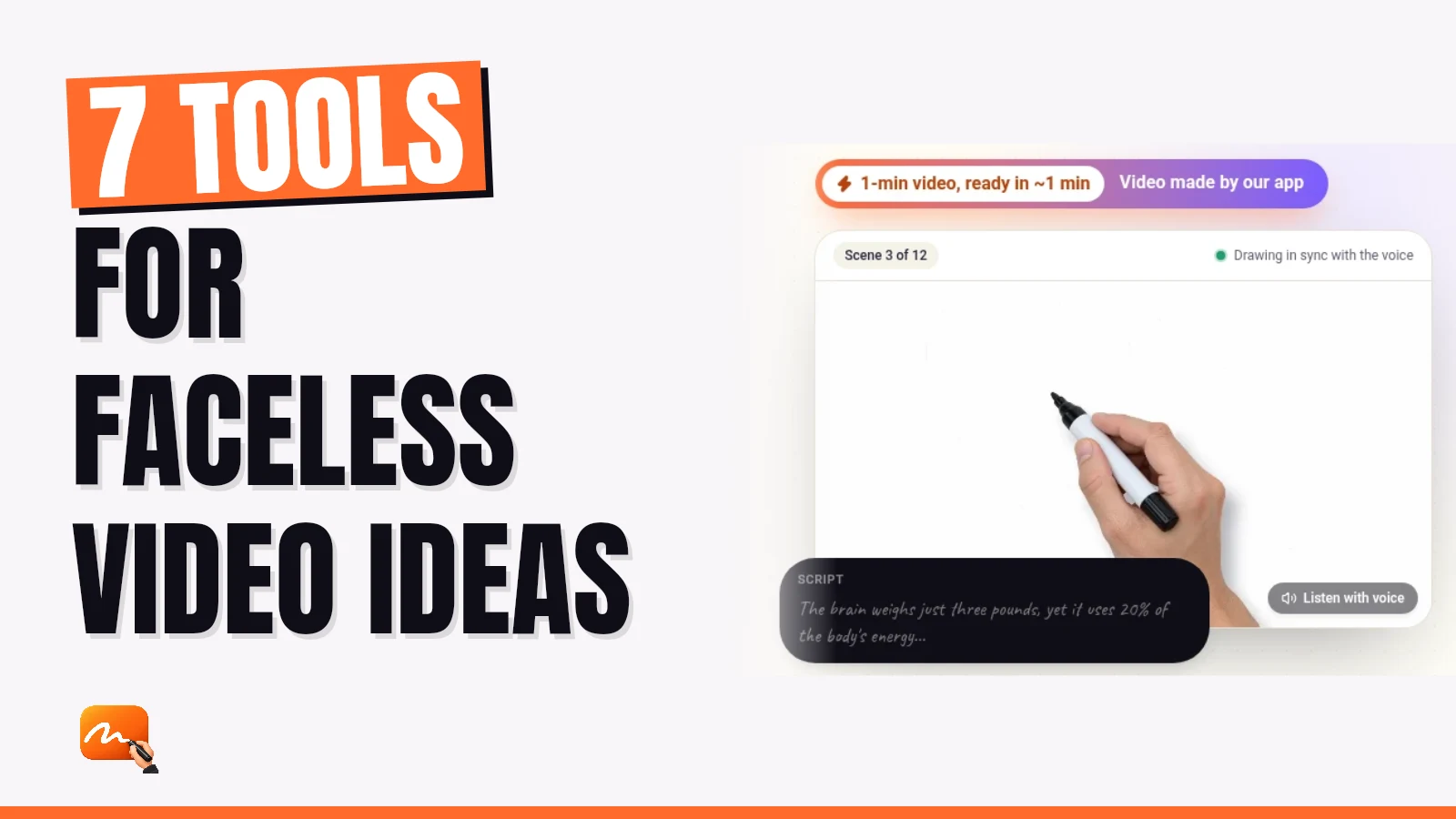
Why is the sky blue? · 0:40 · Our app made this video of about a minute from a plain-text script, in about a minute: our AI drew and narrated every scene. Nothing edited by hand. Longer videos take a few minutes more.
Read the transcript
Why is the sky blue and not white? Sunlight looks white, but it's a mix of every colour.
When it enters the air, it bumps into tiny gas molecules, and those molecules scatter short wavelengths, like blue, much more than long ones, like red. So blue light bounces all over the sky and reaches your eyes from every direction.
At sunset, the light crosses much more air. Most of the blue is scattered away before it reaches you, and the reds and oranges are what's left.
So, what colour would the sky be on a planet with no air?
The script gives us everything the thumbnail needs:
- The promise: why the sky is blue, and why sunsets turn red.
- The iconic picture: a sky that goes from blue at the top to orange at the horizon, with the sun low.
- The hook: the video's own first question, "and not white?"
Two concepts we'd make, both in 9:16 because it's a Short:
| Concept A: states the topic | Concept B: asks the question | |
|---|---|---|
| Type | The big object | The question / before-after |
| Picture | One big drawn sky, blue fading to sunset orange | The frame split: blue sky on top, red sunset below |
| Words | "WHY THE SKY IS BLUE" | "BLUE, NOT WHITE?" |
| Accent word | BLUE | WHITE |
| Where the words go | Top third | Middle, between the two skies |
Because it's a vertical Short, the words stay away from the top and bottom edges, where the app's buttons and captions sit. On YouTube you'd add it as a custom Shorts thumbnail in Studio on a computer. On Instagram or TikTok, you pick it as the cover. Making Shorts from longer videos? Our guide on turning a long video into Shorts and the AI Shorts generator explain how to cut them for free from a finished video.
How to test a YouTube thumbnail after you publish
YouTube lets you test up to three thumbnails, titles, or both on the same video, and shows the winner to everyone. According to YouTube Help on A/B testing titles and thumbnails, checked on 7 October 2026:
- It's in YouTube Studio on a computer only, under the video's Thumbnail or Title box.
- You need advanced features turned on. YouTube's page on feature access and verification explains that custom thumbnails are an intermediate feature (phone verification), while A/B testing is an advanced one (channel history or ID verification).
- It doesn't work on Shorts, scheduled live streams, or videos that are made for kids, for mature audiences, or private.
- The winner is the option with the most watch time, not the most clicks. YouTube says it does this on purpose, because tools that optimise only for click-through rate can pick a different winner.
If your channel can't run tests yet, change one thing at a time (the picture or the words, not both) and give each version time before you judge it.
How to make a YouTube thumbnail with AnimatedBoard
In AnimatedBoard, Thumbnails & covers in the sidebar designs a cover for one of your videos, or for any video you describe, with the headline lettered on the drawing:
- Source. Pick one of your videos (our AI reads it) or choose "I'll describe it" and say what the video is about, plus the drawing style and the language of the text.
- Format. YouTube thumbnail (16:9, 1280×720), Shorts / Reels / TikTok cover (9:16, 1080×1920), Instagram post (4:5, 1080×1350) or square (1080×1080).
- Headline. Our AI writes it, you write your own (up to 60 characters), or no text at all.
- How many. One cover, or two different ideas to choose from. With two, the first states the topic plainly and the second asks the question or makes the promise; both say what the video is about, never a riddle that hides it.
Each cover costs 4 seconds of your minutes (two ideas, 8 seconds), and nothing if it fails. Edit text letters a new headline for 3 seconds of minutes. Edit drawing uses one of your plan's free scene changes, never minutes (the free plan has none). Our AI keeps the lettering inside the safe area of each format and, on YouTube thumbnails, clear of the bottom-right corner.
Two honest notes. The headline is lettered by our image model as part of the drawing, so read it before you download: if a letter comes out wrong, Edit text fixes it. And YouTube covers come out at 1280×720: twice YouTube's minimum width, but smaller than the 3840×2160 it now recommends.
For Instagram, TikTok and Shorts there's one more step. Use as the video's cover makes the image the video's picture in "My videos", in the player and on its public link, and the MP4 opens on it for half a second: if the app asks you to pick a cover frame, the first one is already your cover. It needs a video of the same shape; we put the video together again for free and you download it again. You still upload the thumbnail to YouTube yourself in Studio.
If you make videos without a camera, this sits at the end of the same workflow as the faceless YouTube video maker: script, drawn scenes, voice, captions, then the cover. If you want to plan the whole week, our YouTube automation guide shows where the thumbnail fits, and if the channel doesn't exist yet, start with how to start a faceless YouTube channel.
The pre-upload YouTube thumbnail checklist
Copy this checklist and run it on every thumbnail before you press Save.
| # | Check | Passes if |
|---|---|---|
| 1 | Shape | 16:9 for videos, 9:16 for Shorts and vertical videos |
| 2 | Size | At least 1280×720 for videos; YouTube recommends 3840×2160 |
| 3 | File | JPG or PNG; under 2 MB if you upload from a phone |
| 4 | One subject | You can name the single thing the eye lands on |
| 5 | Topic | Someone who sees only the picture can guess what the video is about |
| 6 | Words | 2-4 words, heavy font, outline, nothing in the title repeated |
| 7 | Accent | One word in one accent colour, no more |
| 8 | Corner | Nothing important in the bottom-right corner |
| 9 | Margins | Nothing touching the edges; on 9:16, words away from top and bottom |
| 10 | 120-pixel test | Topic, first word and main subject clear in two seconds |
| 11 | Honest | The video answers what the thumbnail promises |
| 12 | Channel look | Same font, side and colour as your other thumbnails |
FAQ
What is the best size for a YouTube thumbnail?
YouTube Help recommends 3840×2160 pixels for video thumbnails, in a 16:9 ratio, with a minimum width of 640 pixels (checked 7 October 2026). For Shorts it recommends 2160×3840 pixels in 9:16. Use JPG or PNG, and keep the file under 2 MB if you upload from a phone; from a computer the limit is 50 MB.
Can I make a YouTube thumbnail without Photoshop?
Yes. Any tool that exports a 16:9 JPG or PNG works: a slides app, a free browser-based editor or an AI thumbnail tool. What makes a thumbnail work is one subject, a few words and strong contrast, not the software.
Why can't I upload a custom thumbnail on YouTube?
Usually because your account isn't verified yet: custom thumbnails need at least phone verification. You may also have hit the daily limit (try again in 24 hours) or lost the feature for 30 days after repeated Community Guidelines strikes. Custom Shorts thumbnails can only be added from YouTube Studio on a computer.
How many words should a YouTube thumbnail have?
Two to four words is a good working limit, written in a heavy font with an outline. More than that rarely survives on a phone screen. The words should add the hook the title leaves out, not repeat the title.
Can you add a custom thumbnail to YouTube Shorts?
Yes, in YouTube Studio on a computer: go to Content, open the Shorts tab, choose the Short and upload a file under Thumbnail. YouTube recommends a 9:16 image for Shorts and requires a verified account.
Do faceless YouTube thumbnails work?
A thumbnail doesn't need a face; it needs one subject the eye lands on and a reason to click. A big object, a before-and-after, a simple diagram, a question or a number does that job, and an illustrated character can replace your face.
Make your next thumbnail from the video itself
The fastest thumbnail is the one that starts from what the video already says. Make the video with our AI whiteboard video generator, then let our AI draw one or two covers from it and keep the one that passes the 120-pixel test. Your first minute is free, no card needed: create your free account, or compare the plans and prices first.