How to Add Subtitles to a YouTube Video: SRT Upload, Burned-In Captions and Translations
Add subtitles to a YouTube video the right way: upload an SRT in YouTube Studio, know when to burn captions in, and translate them for new viewers.
By AnimatedBoard · 14 min readRead in Spanish
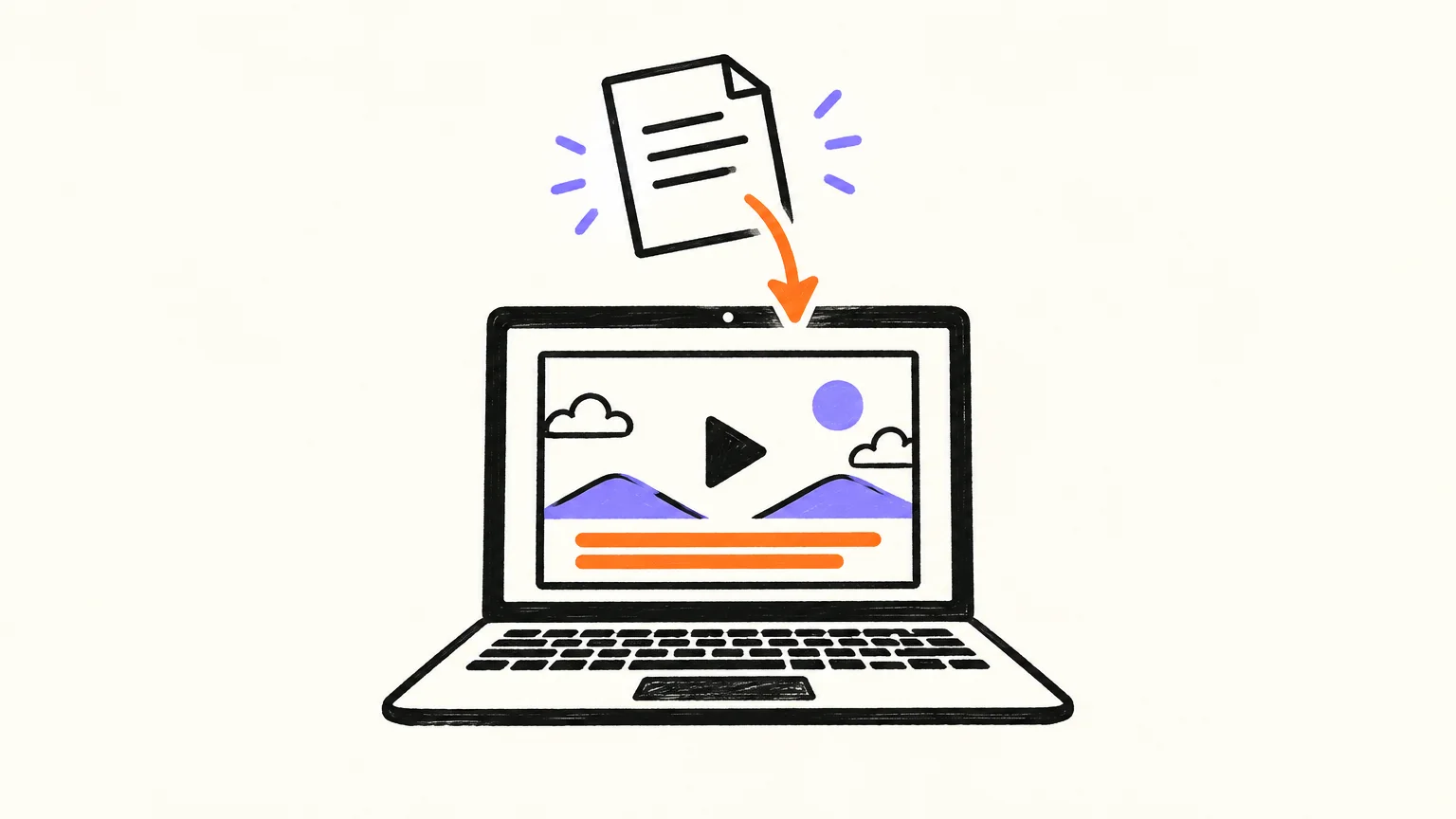
To add subtitles to a YouTube video, open YouTube Studio, choose Subtitles in the left menu, pick your video, click Add language, then Add under Subtitles, and choose Upload file with timing to load a .srt or .vtt file. That gives you closed captions viewers can switch on and off. If your audience watches on phones, in Shorts, Reels or TikTok, burn the captions into the picture as well, because a caption track only shows when someone turns it on. Everything below was checked against YouTube's help pages in October 2026.
Key takeaways
- Two kinds of subtitles: closed captions are a separate file that YouTube shows on demand; burned-in (open) captions are drawn into the video frames and always visible, on every platform.
- SRT is the safe file for YouTube: YouTube Help lists SubRip (.srt) as a basic format that must be plain UTF-8 with no styling, and WebVTT (.vtt) as an advanced format that supports positioning plus bold, italic and underline (checked 2026-10-07).
- A readable subtitle has at most 2 lines of 42 characters, stays on screen between 5/6 of a second and 7 seconds, and reads at no more than 20 characters per second for adults (Netflix's English timed-text guidelines, checked 2026-10-07).
- Our measurement: across our 14 demo videos (7 topics, English and Spanish), the narration runs at 10.8 to 15.0 characters per second, under that 20 cps ceiling.
- Translations matter: YouTube says that, on average, over two-thirds of a creator's audience watch time comes from outside their home area.
- Captions help everyone: a peer-reviewed review cites more than 100 empirical studies showing captions improve comprehension of, attention to and memory for a video (Gernsbacher, 2015).
What is the difference between subtitles, closed captions and burned-in captions?
Subtitles are the words of a video shown as text on screen, timed to the speech. In everyday use "subtitles" and "captions" mean the same thing, and YouTube Studio puts both under one menu called Subtitles. When you need to be precise, there are three kinds:
- Closed captions (CC) are a separate text track stored next to the video. The viewer turns them on or off, can change their font, size and colour in the player, and YouTube can hold one track per language. You add them by uploading a file such as .srt or .vtt.
- Open or burned-in captions are drawn into the video frames before you upload. They can't be turned off, they look exactly as you designed them, and they travel with the MP4 anywhere: TikTok, Reels, LinkedIn, a WhatsApp forward, a classroom projector.
- Subtitles for the deaf and hard of hearing (SDH) also describe sounds that matter, such as "[door slams]". A narrated explainer with no meaningful sound effects rarely needs them.
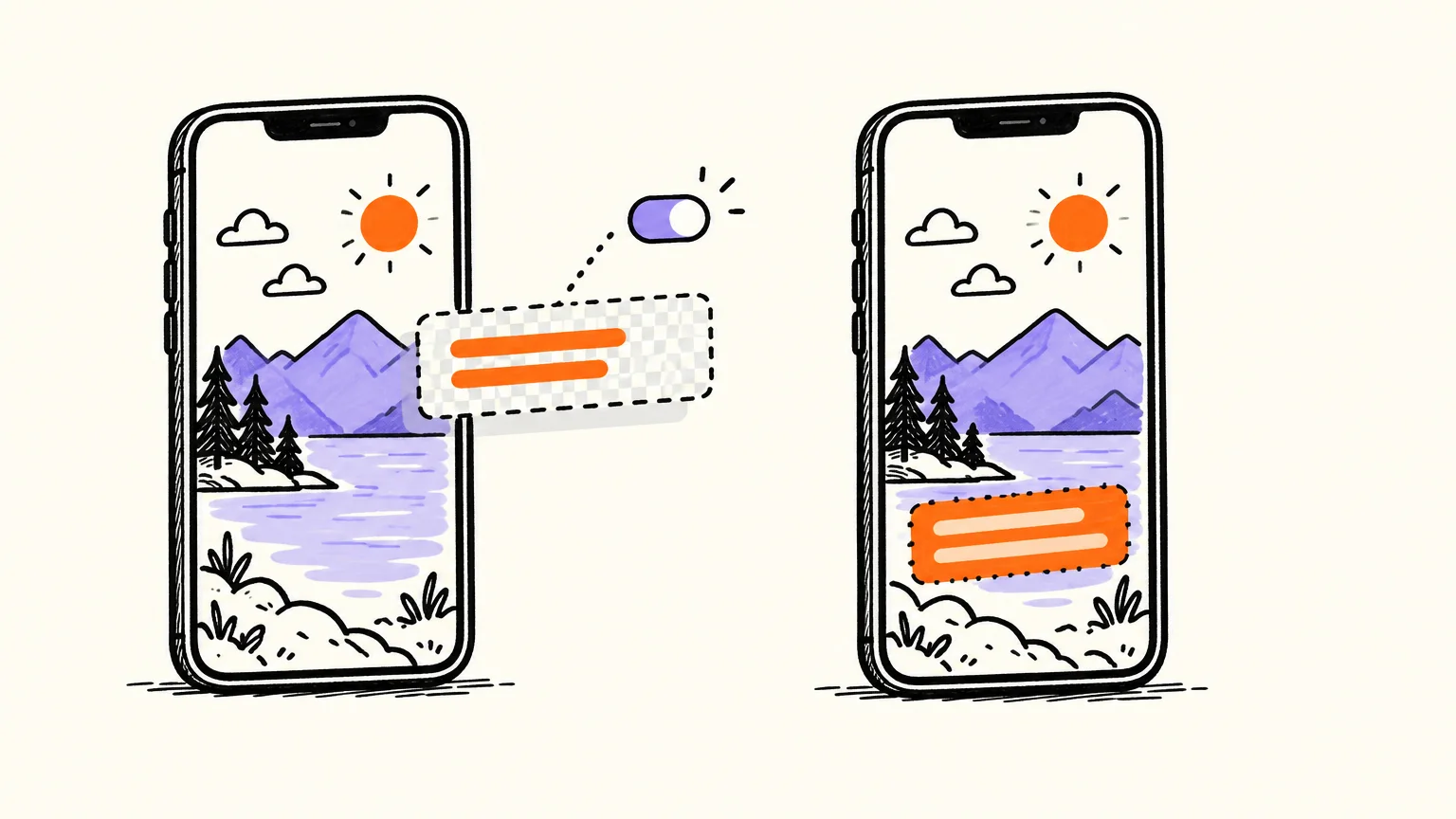
The practical difference is control: with closed captions the viewer decides; with burned-in captions, you do.
Closed captions vs burned-in subtitles: which should you use?
Use closed captions on every YouTube video, and add burned-in captions when the video is vertical, short, or likely to be watched without sound. They aren't rivals. A long YouTube explainer with a clean picture plus an .srt file is the standard; a Short with captions inside the frame is the norm on phones. If a Short already has burned-in text, an extra CC track mostly duplicates it.
| Where the video plays | Closed captions (.srt / .vtt) | Burned-in captions | What we'd do |
|---|---|---|---|
| YouTube long-form (16:9) | Yes, viewers expect the CC button | Optional; can crowd a detailed drawing | Upload an .srt in every language you can |
| YouTube Shorts (9:16) | Possible, but scrollers rarely tap CC | Yes, the words have to be in the picture | Burn them in, above the app's buttons |
| Instagram Reels, TikTok | Depends on each app's own tools | Yes, the file goes with you unchanged | Burn them in before you export |
| LMS, intranet, course platform | Yes, if the player accepts a caption track | Useful for learners who can't use audio | Upload the .vtt or .srt |
| Classroom projector or kiosk | Rarely supported | Yes | Burn them in |
Burned-in captions have one real cost: a typo can't be fixed without uploading a new video. A caption file can be replaced at any time in YouTube Studio.
What is an SRT file? Anatomy of a subtitle file with a real example
An SRT file (SubRip Subtitle) is a plain text file that lists numbered subtitle blocks, each with a start time, an end time and one or two lines of text. It has no formal standard, and it's so simple that almost every editor and player reads it. Each block has four parts: a counter, a timing line with --> between start and end, the text, and a blank line.
Here is a real case: our 64-second whiteboard training video on phishing, built from a 167-word script, with subtitles that follow the narration word for word.
Four checks to spot a phishing email · 1:04 · Our app made this video of about a minute from a plain-text script, in about a minute: our AI drew and narrated every scene. Nothing edited by hand. Longer videos take a few minutes more.
Read the transcript
Four checks to spot a phishing email. Phishing is a message that pretends to come from someone you trust, so that you click a link, open a file or share a password.
Check one: the sender. Look at the full address, not just the name. A message from your bank that comes from a strange domain is a warning sign.
Check two: the pressure. Urgent deadlines, threats to close your account or a prize that expires today are there to make you act before you think.
Check three: the link. Before you click, hover over it and read where it really goes. If the address doesn't match the company, don't open it.
Check four: the request. A real company won't ask for your password or a payment code by email.
If an email fails any of these checks, don't reply and don't click. Report it to your IT team, and if you already clicked, tell them right away. Reporting fast is what keeps the whole team safe.
These are its first three cues as an SRT, with the timings taken from the video's own subtitle track and the text broken into lines of 42 characters or fewer:
1
00:00:00,000 --> 00:00:02,604
Four checks to spot a phishing email.

2
00:00:02,604 --> 00:00:07,319
Phishing is a message that pretends
to come from someone you trust,

3
00:00:07,319 --> 00:00:11,400
so that you click a link, open a file
or share a password.
Three details trip people up. Times are hours:minutes:seconds,milliseconds, with a comma before the milliseconds. The arrow has a space on each side. And the break inside cue 2 falls after "pretends", because a line should end at a natural pause, never on a small word like "to" that belongs to the next one. Cue 2 holds 67 characters for 4.7 seconds: about 14 characters per second, a comfortable pace.
SRT vs VTT: which subtitle format should you upload to YouTube?
Upload an SRT unless you need positioning or simple styling; then use VTT. Both carry the same timed text and YouTube Studio accepts both. According to YouTube's list of supported subtitle and closed caption files, checked on 2026-10-07, SubRip is a basic format where "no style info (markup) is recognized" and the file "must be in plain UTF-8", while WebVTT supports positioning, with styling "limited to <b>, <i>, <u>".
| SRT (.srt) | VTT (.vtt) | |
|---|---|---|
| Full name | SubRip Subtitle | Web Video Text Tracks (WebVTT) |
| First line of the file | The number 1 | The word WEBVTT, then a blank line |
| Time format | 00:00:02,604 (comma) | 00:00:02.604 (full stop); hours optional |
| Cue numbers | Required | Optional |
| Styling on YouTube | None | Bold, italic, underline |
| Positioning on YouTube | No | Yes |
| Who maintains it | No formal standard | W3C (Candidate Recommendation Draft, May 2026) |
| Best for | YouTube, video editors, most players | Web players, HTML5 video, many LMS platforms |
YouTube also takes SubViewer (.sbv), SAMI, TTML, Scenarist (.scc) and other broadcast formats; a typical channel never needs them. The most common reason an upload fails is encoding, so save the file as UTF-8, especially if your script has accents, curly quotes or dashes.
How to upload an SRT file to YouTube Studio, step by step
Uploading a subtitle file takes under a minute once it's ready. These steps follow YouTube Help's guide to adding subtitles and captions, checked on 2026-10-07:
- Sign in to YouTube Studio.
- In the left menu, select Subtitles.
- Click the video. The first time, YouTube asks you to confirm its language.
- Click Add language and choose the language of your file.
- Under Subtitles, click Add.
- Choose Upload file, then With timing, and click Continue.
- Select your file, check the preview against the video, and click Save.
You can also add subtitles during the upload itself. Two habits save trouble: name the file after the video and language (phishing-checks.en.srt), and play the first 30 seconds with CC on before publishing, because a timing offset shows up at once.
If you're preparing the whole upload, the title, description and chapters deserve the same care: see our guide to YouTube titles, descriptions and chapters, and the step-by-step guide to making a YouTube video for the rest of the process.
Other ways to add subtitles: auto-sync, typing and automatic captions
Without a timed file, YouTube Studio offers other options on the same screen:
- Upload file → Without timing: for a text file with no timestamps.
- Auto-sync: you paste or upload the words spoken in the video and YouTube sets the timings. Its help notes the transcript must be in a language its speech recognition supports, and isn't recommended for videos over an hour long or with poor audio.
- Type manually: you play the video and type the captions as you go.
- Automatic captions: YouTube generates them with speech recognition. Its help warns they "might misrepresent the spoken content due to mispronunciations, accents, dialects, or background noise". To fix them, open the video in Subtitles, click Edit on the automatic track, choose Duplicate and edit, correct the lines and click Publish.
Whenever you have the script, use it. Speech recognition guesses at names, numbers and technical terms, and a wrong word in a caption reads as a wrong fact. A narrated explainer is the easiest case, because the script is the transcript; our guide on how to write a YouTube video script shows how to make one that reads well aloud and on screen.
Subtitle best practices: the 2-42-7 checklist
A good subtitle is one the viewer reads without noticing. We sum up the professional guidelines in a checklist we call 2-42-7: at most 2 lines, at most 42 characters per line, at most 7 seconds on screen. Netflix's English timed-text style guide (checked 2026-10-07) sets 42 characters per line, two lines maximum, up to 20 characters per second for adult programmes and 17 for children's, and between 5/6 of a second and 7 seconds per subtitle.
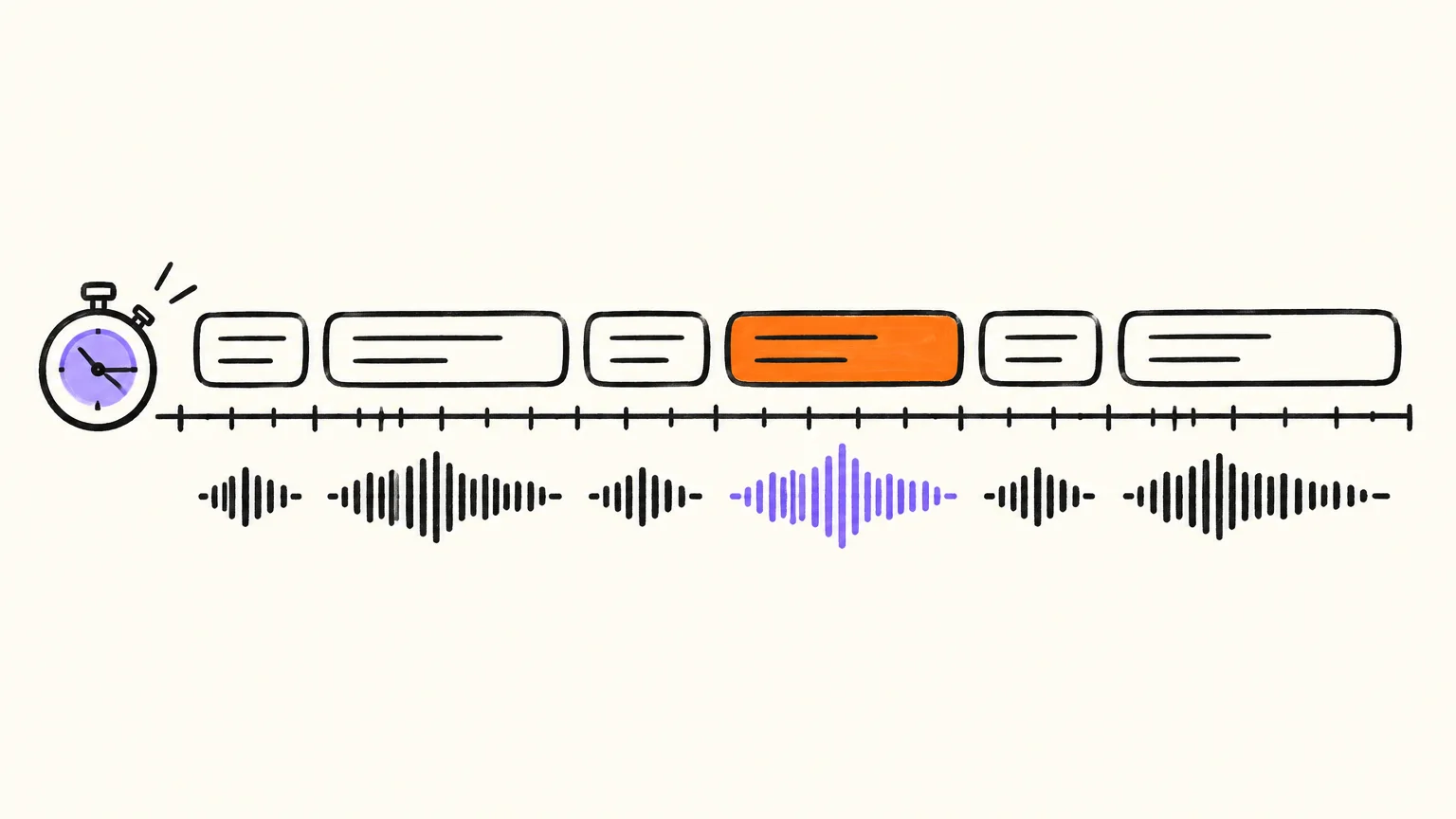
| Check | Target | Why it matters |
|---|---|---|
| Lines per cue | 1, at most 2 | Three lines cover too much of the picture |
| Characters per line | 42 or fewer | Fits a phone screen at a readable size |
| Time on screen | About 1 s to 7 s | Shorter flashes by; longer gets re-read |
| Reading speed | 20 characters/second or less (17 for children) | Faster, and viewers miss the picture |
| Line breaks | After punctuation, before "and", "of", "to" | Never split "the" from its noun |
| Sync | In with the first word, out just after the last | A late cue feels like a dubbing error |
| Words | Exactly what is said | Paraphrased captions confuse hearing viewers |
Our own numbers. We measured the 14 demo videos on our site (7 topics, each in English and Spanish, 40 to 102 seconds long). Their narration runs between 10.8 and 15.0 characters per second over the whole video, and the explainers between 2.4 and 2.8 words per second. The slowest were the illustrated children's stories (about 11 cps), the fastest a 51-second doodle tip (15 cps). A calm narrator stays well inside the limit; trouble starts when a script crams numbers and long words into fast speech. To plan length before recording, the script length calculator converts words to minutes for each of our voices.
How to add subtitles to YouTube Shorts, Reels and TikTok
For vertical short videos, burn the subtitles into the video. A viewer scrolling with the sound low only gets your words if they're in the picture, while a caption track waits for a tap on CC. YouTube's automatic captions cover Shorts as well as long-form videos, but treat that as a backup, not the plan.
Three rules make vertical captions work:
- Keep them out of the bottom quarter. On Shorts and Reels, the app's buttons and the post's own text sit over the bottom and the right edge. For that reason our engine never places the middle of a caption lower than 73 % of the frame height in a 9:16 video.
- Short phrases, big letters. On a 1080×1920 frame, two lines of 42 characters are too small to read at a glance. Our burned-in styles hold 28 to 34 characters per caption, except the film-like one, which takes up to 70 over two lines.
- Phrases, not single words. One word at a time looks energetic, but at normal speaking pace each word stays up for a fraction of a second. Balanced phrases are easier to follow.
If you're cutting Shorts out of a longer video, our guide on turning a long video into YouTube Shorts covers how to pick the moments, and the AI Shorts generator page shows a finished vertical clip.
How to translate YouTube subtitles to reach other countries
A translated subtitle track lets a video reach viewers who don't speak its language, and YouTube holds one track per language on the same video. YouTube's page on translation tools, checked on 2026-10-07, says that "on average, over two-thirds of a creator's audience watch time comes from outside of their home area" and that "translated metadata may increase a video's reach and discoverability".
- Translate your .srt, keeping the numbers and timings exactly as they are and changing only the text.
- Check the lines still pass the 2-42-7 checklist: Spanish and German usually run longer than English.
- In YouTube Studio, open Subtitles, pick the video, click Add language, choose the new language and upload the file with timing.
- On the same row, add a translated title and description, so the video can be found in that language.
This pays off most for channels that don't depend on a face or a local accent: a faceless YouTube channel built on narration and drawings can serve a second language with a file and a translated title. Have a native speaker read at least the first minute: machine translation handles sentences well and context badly, and brand names get translated by mistake.
Do subtitles help YouTube SEO and accessibility?
Subtitles clearly help accessibility and reach, but YouTube's help doesn't say caption text is a ranking factor, so be wary of anyone promising rankings from captions alone. What YouTube does document, as of October 2026:
- Captions widen the audience: they "allow you to share your videos with a larger audience, including deaf or hard-of-hearing viewers and viewers who speak another language."
- Captioned videos are labelled in search: its "Search for videos with captions" page says they show "CC" under their summary in results, and viewers can filter by Subtitles/CC.
- Translated titles and descriptions help speakers of other languages find the video.
The evidence on comprehension is strong. Morton Ann Gernsbacher's review Video Captions Benefit Everyone (Policy Insights from the Behavioral and Brain Sciences, 2015) states that "more than 100 empirical studies document that captioning a video improves comprehension of, attention to, and memory for the video". That's why lessons and training are where captions pay off most, whether you make videos for students or for staff training.
How AnimatedBoard makes the subtitles for you
AnimatedBoard turns your script into a narrated, drawn video, and the subtitles come from the same script, so there's nothing to transcribe or sync. With every video you get:
- An .srt and a .vtt file, next to the MP4. The text is your narration word for word: our AI never rewrites your script; only spaces may become line breaks. Cues follow the rules above (at most 2 lines of 42 characters, between 1 and 7 seconds), timed on the finished video.
- Burned-in captions if you want them. In whiteboard videos they're a switch, "Captions in the video", off by default so the drawing stays clean; in illustrated stories they're on by default. Switching them on later costs no minutes: you render again.
- Five caption styles: Classic (a clean box), Impact (big capitals, the spoken word in green), Highlight (the spoken word on a yellow marker), Cinema (film-style, up to two lines) and Comic (tilted comic-book letters).
- Burned-in captions in another language. The voice can speak English while the captions read in Spanish, French, German, Italian or Portuguese, or the other way round. Our AI translates the narration only for the captions in the picture; the voice doesn't change, and the downloadable .srt stays in the voice's language.
- Shorts from the same video, at 1080×1920, with burned-in captions optional and on by default, at no extra cost.
The limits: we don't add the file to YouTube for you, so you upload it with the steps above; a translated CC track means translating the .srt yourself; and, as with any MP4, burned-in captions can't change after export. To see the format, the whiteboard explainer video page has examples, and the story video generator covers the illustrated look.
FAQ
How do I add an SRT file to a YouTube video?
In YouTube Studio, select Subtitles, click the video, choose Add language, then Add under Subtitles. Pick Upload file, select With timing, click Continue, choose your .srt and click Save. The file must be plain UTF-8.
What subtitle format does YouTube accept?
YouTube accepts SubRip (.srt), SubViewer (.sbv or .sub), WebVTT (.vtt), SAMI, TTML, Scenarist (.scc) and several other formats. For most creators .srt is the simplest choice, and .vtt is the one to use if you need positioning or bold and italic text.
Should I use closed captions or burned-in subtitles?
Use closed captions on every YouTube video so viewers can switch them on, resize them and pick a language. Add burned-in subtitles for Shorts, Reels and TikTok, where people scroll with the sound low and rarely tap CC.
How many characters should a subtitle line have?
About 42 characters per line and no more than two lines is the common professional limit, used in Netflix's English timed-text guidelines. Each subtitle should stay on screen between roughly 1 and 7 seconds and read at no more than 20 characters per second for adults.
Can I add subtitles to YouTube Shorts?
Yes. YouTube's automatic captions cover Shorts as well as long-form videos. On vertical clips it works better to burn the captions into the video, kept above the buttons at the bottom of the screen.
How do I translate subtitles on YouTube?
Translate your .srt while keeping its numbers and timings, then in YouTube Studio open Subtitles, choose the video, click Add language and upload the translated file with timing. Add a translated title and description on the same row so the video can be found in that language.
Do subtitles improve YouTube SEO?
YouTube doesn't say caption text is a ranking factor. It does label captioned videos with "CC" in search results, lets viewers filter by Subtitles/CC, and says translated titles and descriptions may increase a video's reach.
Make a captioned video from your script
Write the script once and get the video, the narration, the .srt and the .vtt together, with burned-in captions in any of six languages if you want them. Create a free account: your first minute of video is free, no card needed, and the pricing page has the plans for when you want more.